ListenBook on Apple Watch
Listen on your Apple Watch — no iPhone required
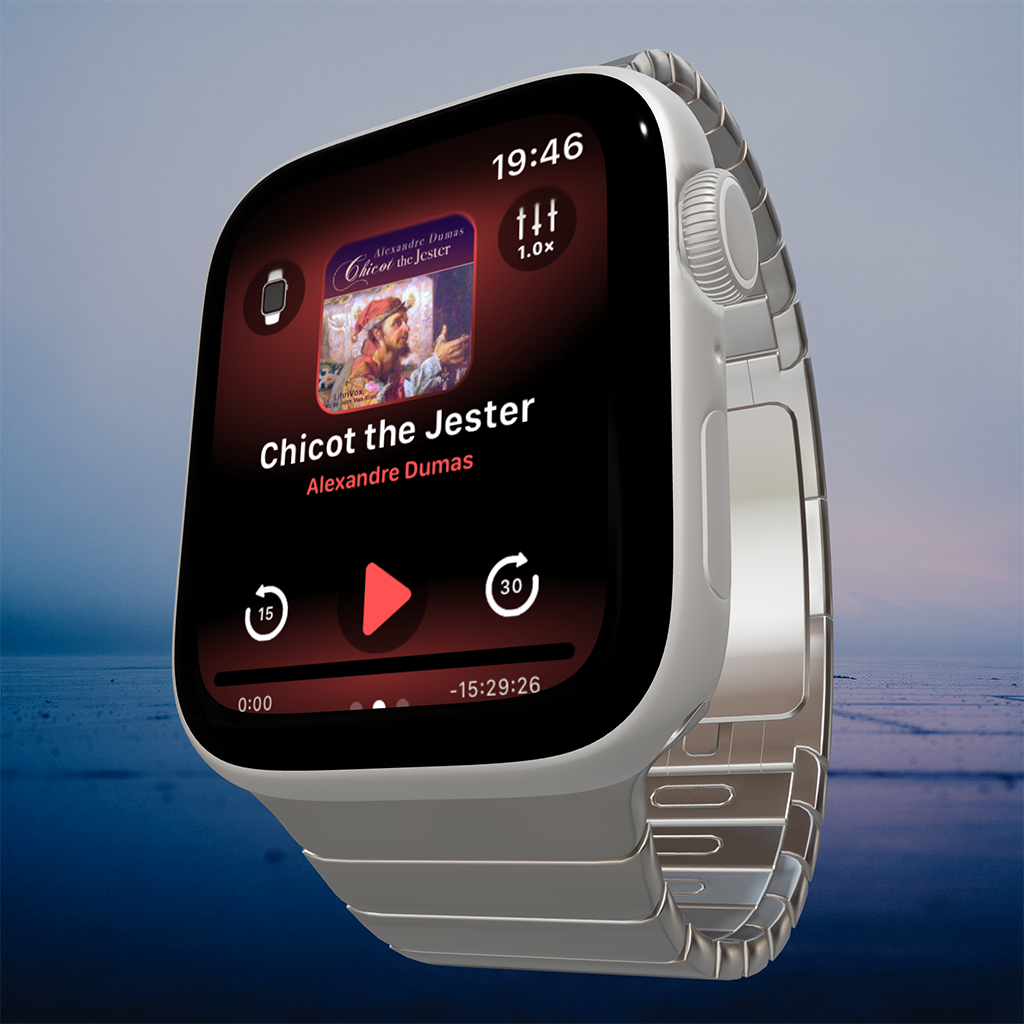 ListenBook v2.44 adds the ability to download audiobooks directlyto your Apple Watch. Once a book is there, you can play it without
your iPhone anywhere nearby — on a run, at the gym, or wheneveryou’d rather leave the phone behind.
Your iPhone app remains the hub. That’s where your library lives, where transfers start, and where your listening position syncs when
the two devices reconnect. The Watch just extends what you already have.
Two modes
The ListenBook Watch app works in two modes, and you can switch between them at any time from the player screen.
| Remote Control | Local Playback | |
|---|---|---|
| Audio plays on | iPhone | Apple Watch |
| iPhone needed nearby | Yes | No |
| Books stored on Watch | No | Yes — transferred in advance |
| Good for | Controlling iPhone playback from your wrist | Phone-free listening |
Before you start a transfer
A few things need to be in place before you send a book to
your Watch:
- ListenBook opened at least once on both your iPhone and Watch — this is what creates the connection between the two apps
- Bluetooth on for both devices
- Both devices on the same Wi-Fi network
- Watch unlocked, with ListenBook open in the foreground
- At least twice the book’s file size free on the Watch
One more thing: keep your iPhone screen on throughout the transfer. If the phone goes to the background, the transfer pauses. It will resume when you bring the app back, but it’s easier to just leave the screen on.
How to transfer a book to your Apple Watch
Step 1. Choose the book
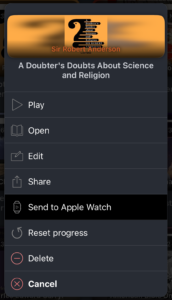
In your ListenBook library, long-press the book you want to send (or tap the ⋮ button) and choose Send to Apple Watch.
Step 2. Wake your Watch
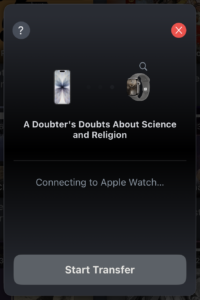
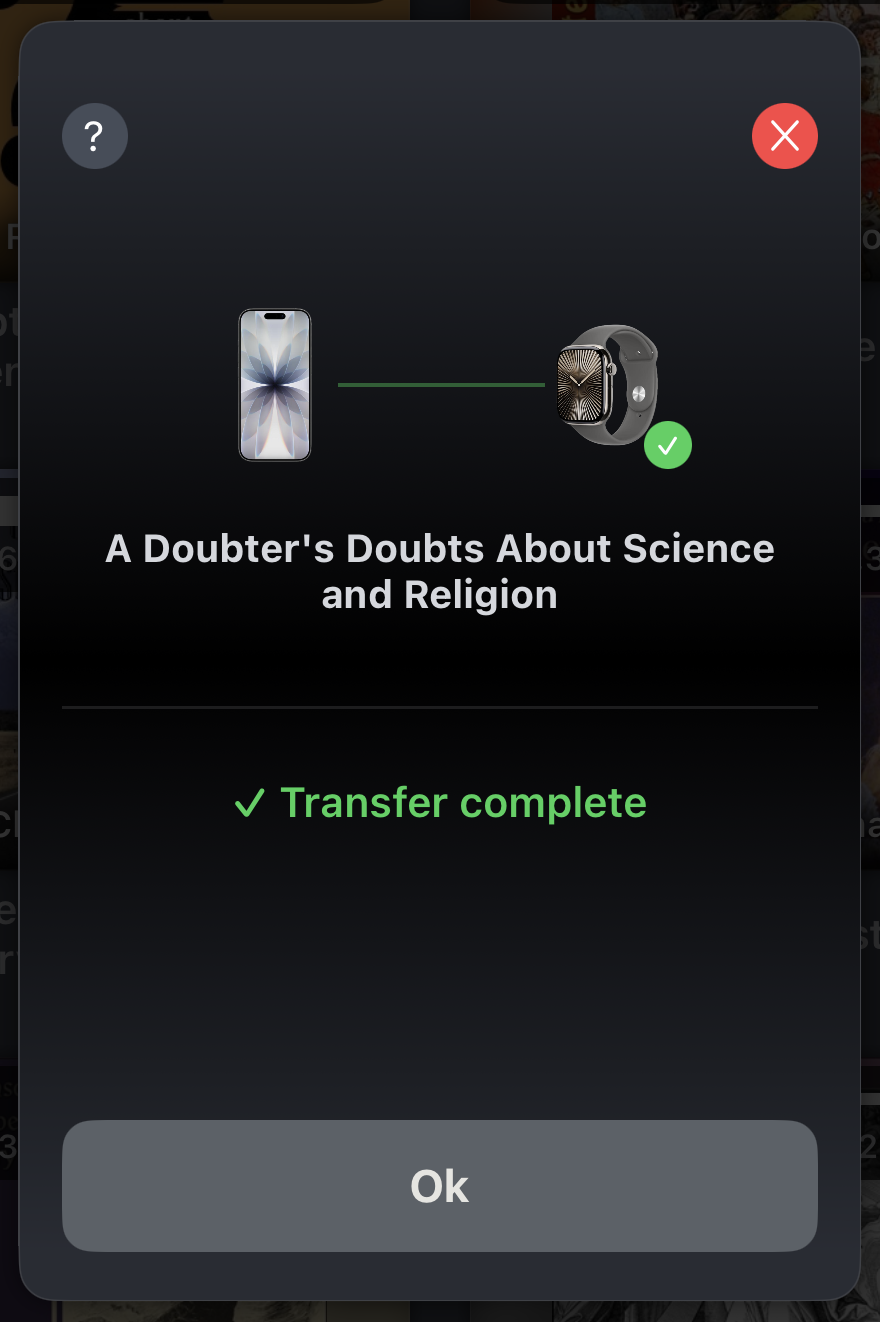
A data transfer window will appear on your iPhone screen. If the watch is in sleep mode, you’ll see a short countdown—raise your wrist to wake it up. When the watch is ready, tap the “Start Transfer” button to begin transferring files to the watch.
Step 3. Wait for it to finish
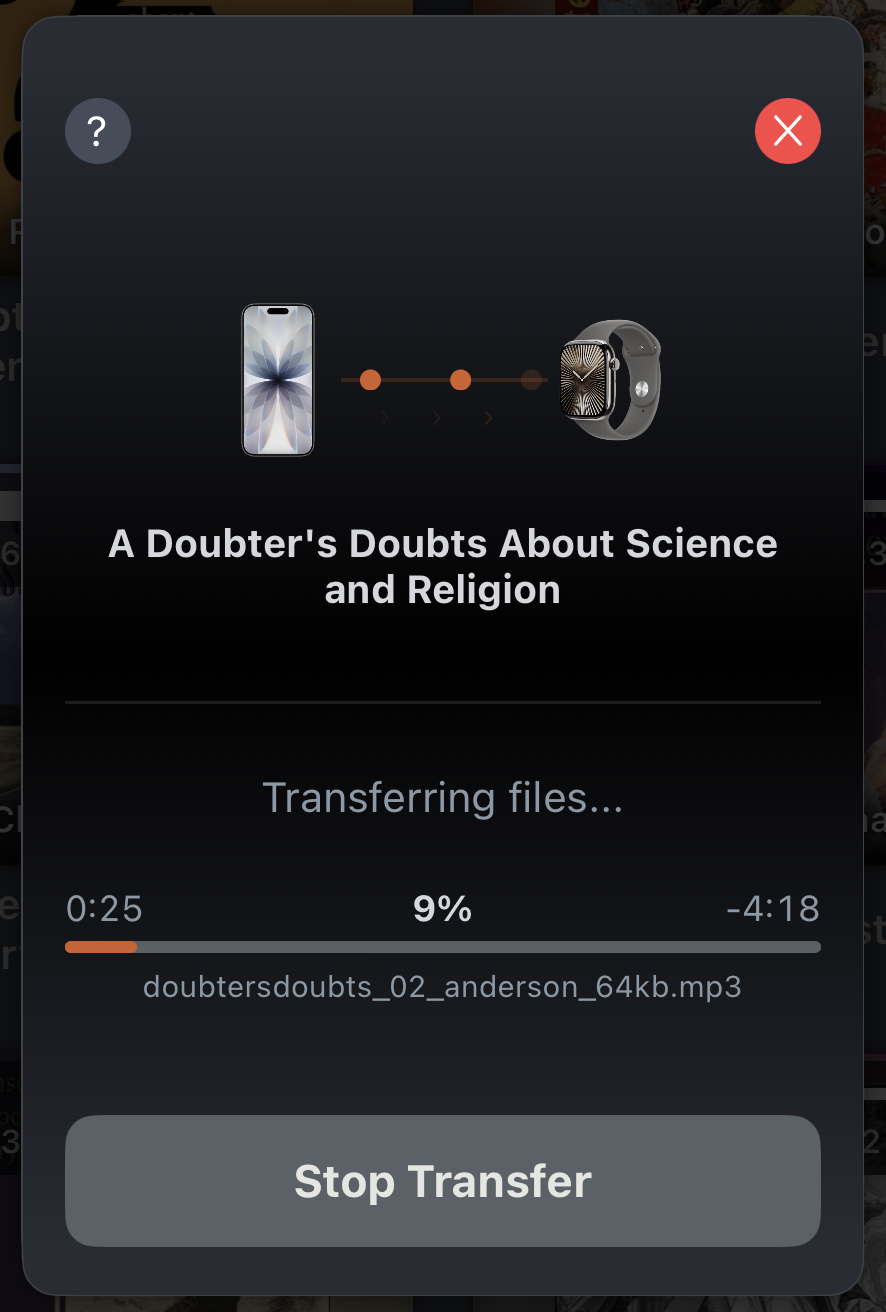
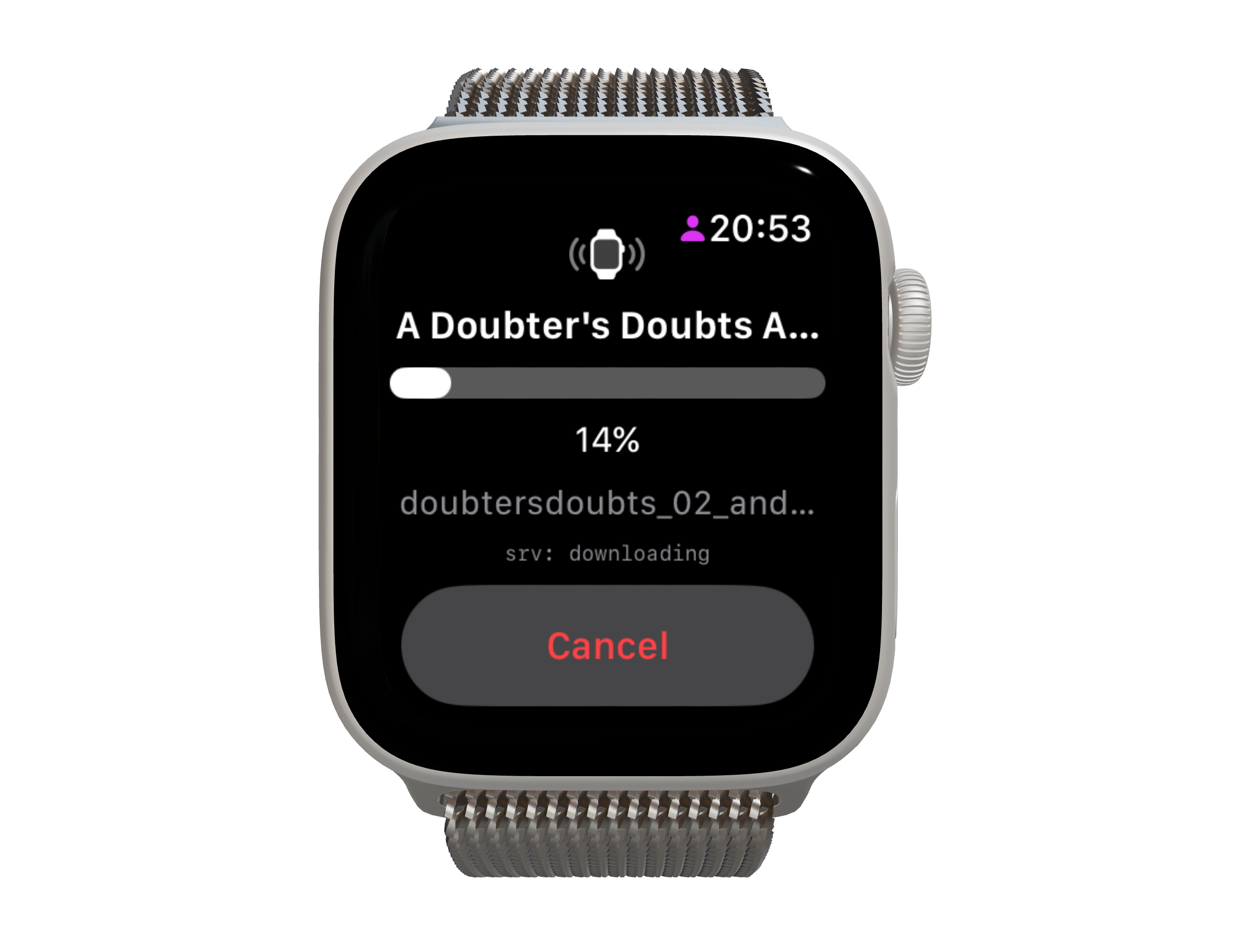
Your iPhone shows the current file being sent, the transfer speed, and estimated time left. Your Watch shows overall progress and a Cancel button. Keep both devices close together and the iPhone screen on.
Step 4. Done
A green checkmark appears on your Watch when the transfer completes. The book is in your Watch library and ready to play.
If the transfer gets interrupted
Dropped connection, iPhone went to sleep, you cancelled it — just restart the transfer from your iPhone and it picks up where it left off, skipping the parts already downloaded.
One thing to know: this only works if you restart the same book. Starting a different book’s transfer clears the saved progress for the previous one.
Remote Control mode
In Remote Control mode, audio plays on your iPhone. The Watch sends commands to it over Bluetooth. Nothing is stored on the Watch itself.
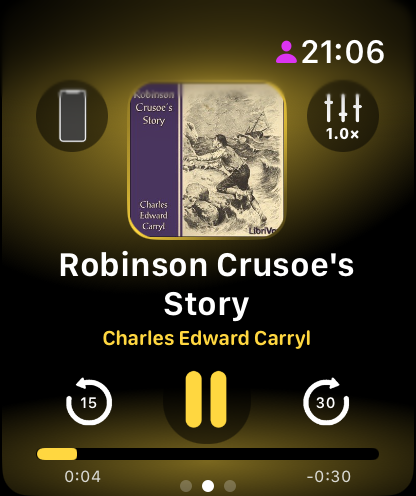
From your wrist you can:
- Play and pause
- Skip forward and backward — the seek time is whatever you have set in the iPhone app, synced automatically
- Adjust volume by rotating the Digital Crown
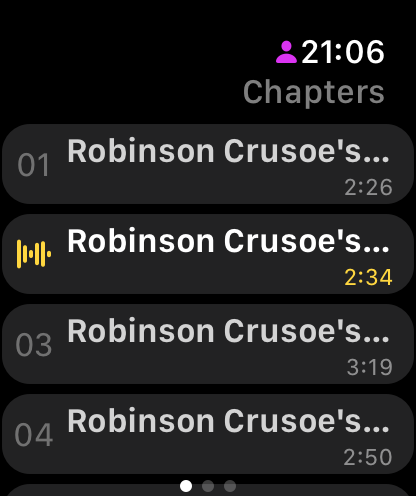
- Jump between chapters — swipe left to the Chapters screen, then tap any chapter
- Change playback speed — tap the sliders icon in the top-right corner of the player
- Set a sleep timer — also found in the settings screen
Library in Remote mode
Swipe right from the player to see your library. In Remote mode, it shows the 5 most recently played books on your iPhone. Tap any of them to switch iPhone playback to that book right away.
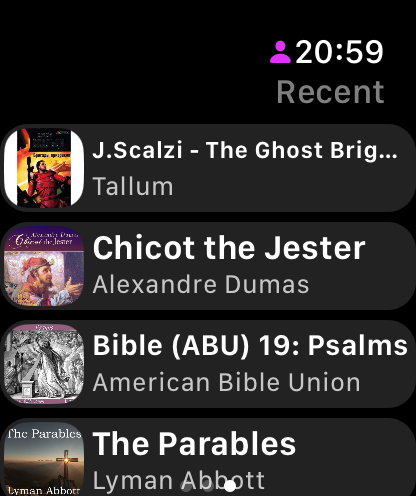
Local Playback mode
In Local Playback mode, your Watch plays audio on its own using books you’ve transferred in advance. No iPhone needed.
To switch modes, tap the mode button in the top-left corner of means Local mode is active; a phone icon means Remote mode.
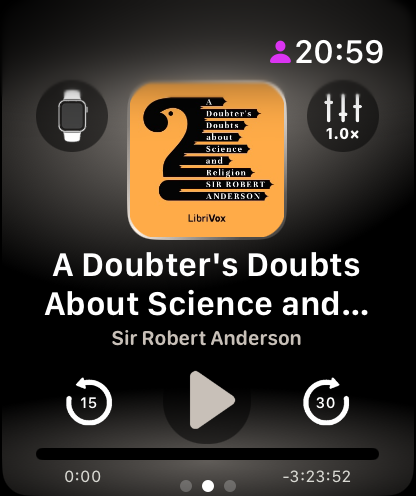
The controls work the same as in Remote mode, with one difference: the skip buttons are fixed at 15 seconds. Speed control, sleep timer, and chapter navigation all work the same way.
Library in Local mode
Swipe right to open your Watch library. In Local mode, it shows all books you’ve downloaded to the Watch. Tap a book to play it or remove it from the Watch.
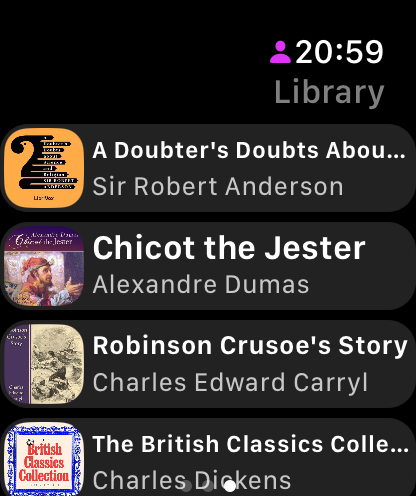
Position sync
When you open ListenBook on your iPhone after listening on the Watch — or the other way around — your position syncs automatically. Whichever device has the more recent timestamp wins, so you always continue from where you actually stopped.
A few things worth knowing
Transfer speed is around 400 KB/s, so a 600 MB audiobook takes roughly 25 minutes under good conditions. watchOS routes most traffic through Bluetooth for power efficiency — that’s what caps the speed, and nothing in the app can change it.
Before you start, make sure your Watch has at least twice the book’s file size free. Parts are stored temporarily during the download, then assembled into the final files at the end, which is why you need the extra room.
Swipe left on the Watch player anytime for the chapter list. The current chapter is highlighted with a waveform icon; tap any chapter to jump to it. This works the same way in both modes.
If you use Watch complications, all watchOS complication families are supported and show your current book and progress.
Get started
Apple Watch playback is available in ListenBook v2.44 and later. You can transfer one book to your Watch for free. A ListenBook subscription removes that limit and unlocks unlimited listening time on the Watch.
Open the app, long-press any book in your library, and tap Send to Apple Watch.